

The frustration is familiar. The guest list is ready, ticket types have been checked, discount codes are filled in, and then the import screen rejects the file. Sometimes there is a clear error message. More often, the issue is subtle: columns shift, names with accents break, or only part of the rows is imported.
That is why learning how to create a CSV file still costs event organizers more time than expected. The format looks simple, but ticketing and CRM systems do not read what a spreadsheet displays. They read raw text, fixed delimiters and an exact structure.
Why a good CSV file matters for events
Imports rarely fail because the list itself is useless. Usually the data is fine, but the technical wrapper is not. A spreadsheet can look clean in Excel and still be unreadable for a ticketing platform.
CSV remains useful because it is simple and widely supported. Cash explains the CSV format as a practical text format for exchanging data between systems. For events, that means attendees, guest lists, discount codes, seating data and segments can move between tools without manual retyping.
Where imports go wrong
An organizer might export contacts from Gmail, add ticket categories in Excel and then import everything into an event platform. On screen, it looks like an ordinary table. The platform expects something stricter:
- Exact column names that match the import schema
- One consistent delimiter on every row
- Correct character encoding so names remain readable
- No hidden formatting from Excel
A CSV file contains no colors, merged cells or spreadsheet logic. Only text. That makes it strong for exchange, but sensitive to small mistakes.
An import issue is usually not a data issue. It is a format issue.
For organizers who also want to keep tax and administration clean, this matters beyond the import screen. A bad import can affect communication, access control, reporting, segmentation and reconciliation.
Timing is hard in events. A CRM import that works tomorrow is inconvenient. A guest list that still fails just before doors open creates operational stress. This is especially true when custom fields, group sizes or discount codes are used in an event CRM.
| Part | Why it matters |
|---|---|
| Contact data | prevents duplicate or unusable profiles |
| Ticket information | ensures categories and rights land correctly |
| Segmentation fields | enables targeted communication and service |
Treating CSV as "just save as" often causes trouble. Treating it as a technical transfer between systems prevents most import errors before they happen.
The anatomy of a correct CSV file
A CSV file is not a spreadsheet file. It is plain text. When a ticketing platform reads an import, it does not look at tabs, styling or column widths. It reads text row by row, separated by one agreed character.
In Excel, data may look like this:
| Name | TicketType | DiscountCode | |
|---|---|---|---|
| anna@example.nl | Anna de Vries | Early Bird | SPRING24 |
| bjorn@example.nl | Björn Jansen | VIP |
As raw CSV text, the same data looks like this:
Email;Name;TicketType;DiscountCode
anna@example.nl;Anna de Vries;Early Bird;SPRING24
bjorn@example.nl;Björn Jansen;VIP;
Each row is a record. Each field is separated by a delimiter, usually a comma or semicolon. The first row usually contains the headers.
Three parts that must be right
Headers
The first row tells the import system what every column means. If the platform expects Email and the file uses E-mail address, mapping can fail or require manual work.
Rows
Each following row represents one contact, order or registration. If one row contains more or fewer fields than the others, the structure shifts.
Delimiter
The spreadsheet shows columns, but the CSV stores only text plus separators. That one character determines whether a row is read as four fields or one long sentence.
Practical rule: choose the target system's expected import format first. Adjust the CSV after that.
Events often use extra fields such as group size, discount code, company, session choice or dietary preference. That makes it tempting to make headers nicer for internal use. It works in Excel, but less well during import. For teams that work with structured data more often, this connects to broader discipline around field names and data structure, as discussed in this article on optimizing a PIM strategy.
The same applies to custom registration data. A system with custom fields works smoothly only when CSV headers match what the import expects.
A CSV file does not store formulas, cell colors, dropdowns, multiple tabs, filters or sorting settings. The visual table is not what matters. The underlying text structure is.
Creating CSV files in Excel, Google Sheets and LibreOffice
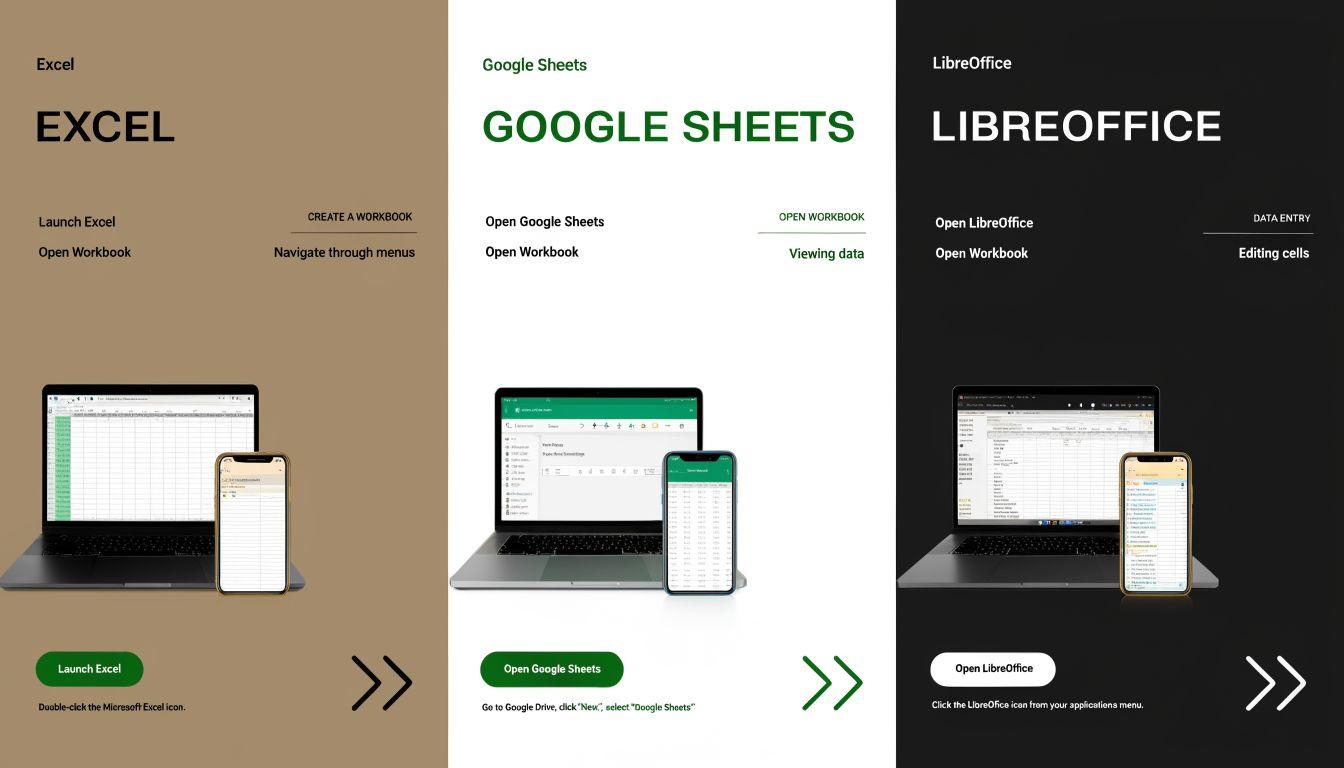
Most organizers start in a spreadsheet. That makes sense. The trap is that every tool writes CSV slightly differently. Excel in a Dutch or European environment can be especially confusing because export options do not always make delimiter and encoding obvious.
Excel without surprises
In Excel, the safest route is usually Save as. Onfact's explanation of CSV storage and list separators shows why choosing between options such as CSV (list separator) and CSV UTF-8 matters.
Useful workflow:
- Check column names first
Use short, clear headers without extra spaces. - Format sensitive columns as text
Think of postal codes, phone numbers, member IDs and values with leading zeros. - Use Save as
Choose a deliberate CSV export instead of a random sharing option. - Select the right file type
CSV UTF-8is usually the safest choice. - Close and reopen the CSV for inspection
Prefer a text editor over Excel for the final check.
Excel is powerful, but sometimes too helpful. It reformats values, changes dates and hides technical problems behind a neat table view.
Google Sheets and LibreOffice
Google Sheets is useful when multiple team members work on the same list. Remove empty rows and columns, set critical fields to plain text and use File > Download > Comma-separated values (.csv). Then inspect the downloaded file in a simple editor.
LibreOffice Calc often gives more control over export settings. During export, it usually shows a dialog where delimiter, text qualifier and encoding are visible. That makes mistakes easier to spot than in Excel.
| Tool | Best when |
|---|---|
| Excel | the list is managed internally and someone understands export settings |
| Google Sheets | several people collaborate on one export sheet |
| LibreOffice | maximum control over delimiter and encoding is needed |
During migrations from older ticketing or registration systems, check both the final file and the source structure. This matters when moving from platforms such as Eventix, where exports and field names may be structured differently. See migration from Eventix.
Fixing delimiters and encoding
Most failed imports come from two causes: the wrong delimiter or the wrong encoding. Both are frustrating because Excel does not always make them visible.

In the Netherlands and parts of Europe, Excel often uses a semicolon as list separator. That can clash with platforms expecting a comma. Microsoft explains how regional settings influence how CSV files are saved and opened.
This line:
Email;Name;TicketType
will be read as one field by a system that expects commas.
Typical symptoms:
- All data lands in column one
- Columns shift during import
- The header is not recognized
- The system reports the wrong number of fields
The cleanest fix is usually exporting again with the correct CSV variant. Open the file in a text editor afterwards. Manual find-and-replace is risky when the data itself contains commas or semicolons.
The second classic issue is character encoding. Without the right encoding, names break. Chloë becomes unreadable, Björn changes into strange characters and company names with accents arrive corrupted in the CRM.
| Intended | Imported wrongly |
|---|---|
| Chloë | Chloë |
| Björn | Björn |
| José | José |
The safe choice is almost always UTF-8, especially when files contain names, international addresses or free-text fields.
Validating your CSV before import
A CSV should be checked before import. Once a bad list is inside a platform, correction takes longer and the risk of duplicate records or wrong segmentation grows.
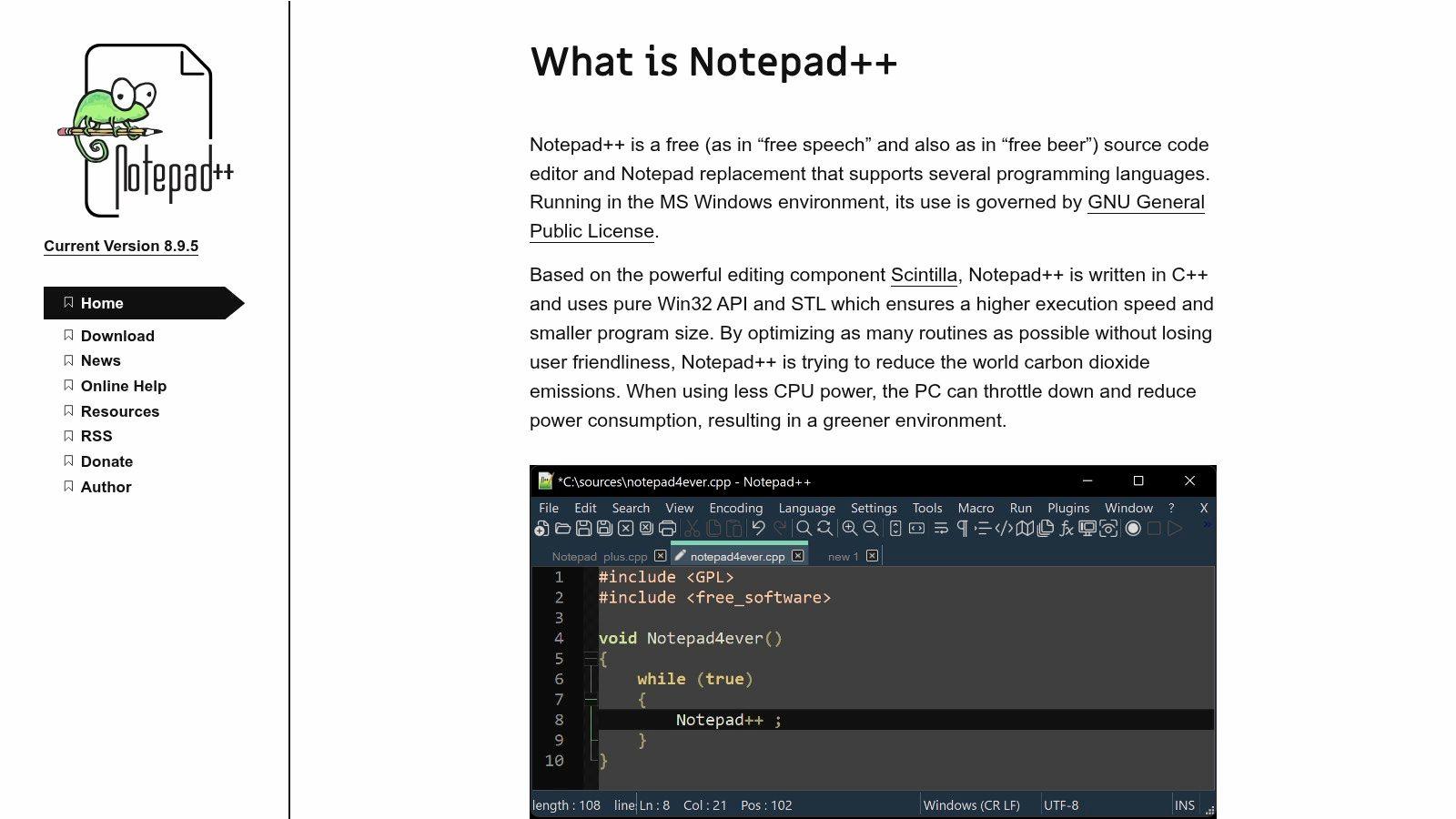
The fastest check is not in Excel, but in a simple text editor such as Notepad or Notepad++. There you see the file as the import system reads it.
Before every import, check:
- The first line: are the headers exactly what the target system expects?
- The delimiter: do you consistently see commas or semicolons?
- Quotes around text fields: especially with commas, semicolons or free text.
- Empty rows at the bottom: some importers read them as empty records.
- A few random rows: every row should have the same number of fields.
One crooked row can make an entire import unusable.
Importing the whole guest list at once feels efficient, but a small test batch is safer. Use a few difficult examples: a name with an accent, an empty discount code, a postal code with a leading zero and a field with multiple words.
FAQ about CSV files

How is text with commas or semicolons stored safely?
Put values like that between double quotes. Without quotes, the importer sees an extra separator.
"Station Square 1, Unit B"
Why do leading zeros disappear?
Spreadsheet software often treats those values as numbers. 0123 becomes 123. Format the whole column as text before entering or exporting data.
Can formulas be stored in a CSV?
No. A CSV stores only the result of a formula, not the formula itself. Keep the original .xlsx, .ods or Sheets file as well.
Can a CSV contain multiple tabs?
No. A CSV contains one flat dataset. If a workbook has multiple tabs, export each tab separately or create one clean export tab.
A good CSV file saves time exactly when an event team has the least time left. For organizers who prefer to manage ticketing, CRM and imports in one environment, Tiqqo supports onboarding and migration so guest lists, segments and registration data are processed with fewer errors.